
What is a Proxy and Why Do You Need to Know How to Turn Off Proxy Settings?
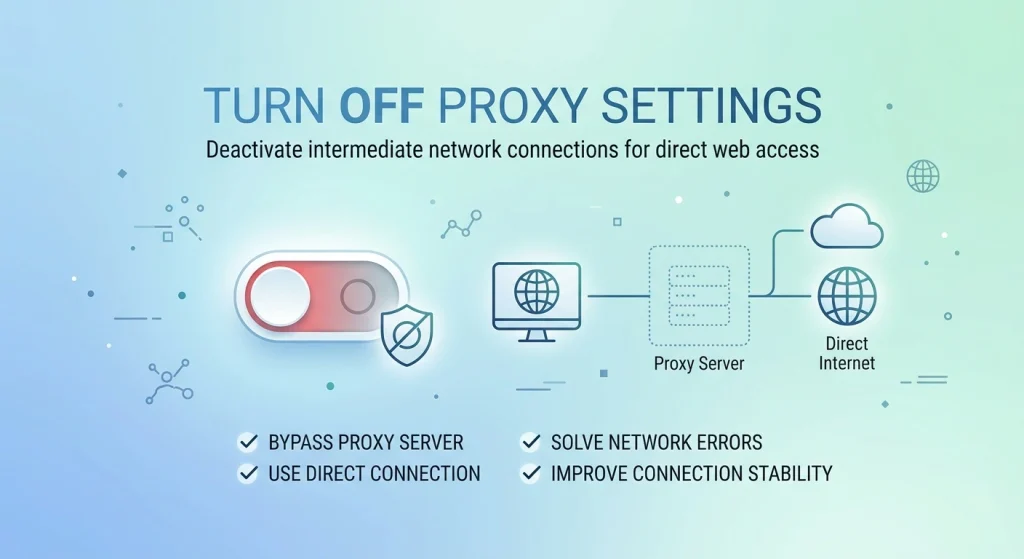
An intermediary network component, traditionally defined under Internet Engineering Task Force (IETF) RFC 7230 architectural guidelines, acts as a gateway between your local endpoint device and the broader internet infrastructure. When active, it intercepts outgoing packets, rewrites headers, modifies source IP metadata, and handles caching protocols. While commercial software solutions rely heavily on specialized proxies—such as corporate networks monitoring data patterns—misconfigured or stale consumer-level proxy entries are the primary cause of connection dropouts and local routing loop errors.
From an enterprise troubleshooting perspective, keeping a proxy active when it is no longer operational will disrupt standard network flows. The application layer continues attempting to handshake with a specific server port that is offline, triggering browser timeout failures. Understanding how to turn off proxy structures is an essential diagnostic technique for resolving localized web connectivity issues. By implementing a systematic removal of proxy paths, you establish clean baseline routing directly to your Internet Service Provider (ISP).
Key Takeaway: Proxies are invaluable for scale data management, security, and anonymity. However, when local settings retain dead IP configurations or faulty loops from public services, learning how to disable proxy rules becomes the first line of defense in network diagnostics.
How to Turn Off Proxy Settings Across Different Operating Systems
Each system framework routes network proxy directives via independent control architectures. Below are deep-dive configurations covering active client deployments.
How to Turn Off Proxy Server on Windows 10 and Windows 11
Microsoft Windows environments utilize integrated registry keys and centralized winhttp communication setups. Often, background applications or outdated malicious extensions alter these values, locking the system into a perpetual loop. Here is the field-tested methodology to clear these entries:
- Initiate system settings by clicking the Start Menu or utilizing the short-key combo Windows + I.
- Navigate to the left-hand category pane and select Network & internet, then click on the Proxy management tile situated in the secondary layout index.
- Locate the section labeled Automatic proxy setup. Here, find the toggle switch for Automatically detect settings. For standard consumer routers, ensure this is set to On. However, if third-party software has broken your baseline routing, turning this toggle Off can prevent persistent system overrides.
- Scroll down to the Manual proxy setup configuration menu block. Click the Edit button positioned directly parallel to the option titled Use a proxy server.
- Toggle the parameter to Off. Erase any residual IP string inside the Proxy IP address input text box and clear the designated Port number field. Click Save to commit changes into your system environment.
In certain complex deployment environments, local enterprise administration policies block users from making these changes, resulting in the toggle being grayed out. If you encounter an un-editable manual configuration on Windows, you must execute an overrides drop via the command prompt. Open the Windows Console Terminal with elevated administrator permissions and execute the command netsh winhttp reset proxy. This direct network shell instruction executes a definitive drop proxy sequence, stripping out invalid entries from the core network layer.
How to Turn Off Proxy Mac Environments (macOS)
Apple macOS structures handle system routing parameters within the Unified System Settings environment. The system binds proxy entries to specific physical hardware interfaces (such as Wi-Fi hardware adapters or structural Thunderbolt Ethernet nodes). To clear these entries:
- Access the primary desktop interface menu by selecting the apple emblem located in the upper left section of your display and pick System Settings.
- Locate and click on the Wi-Fi or Network category from the primary navigation sidebar array.
- Identify your currently active, connected network link, then click the corresponding Details… button (or the integrated contextual Info “i” icon).
- Within the advanced pop-up subwindow configuration array, browse down to the Proxies options tab.
- You will see a comprehensive protocol registry index, including Web Proxy (HTTP), Secure Web Proxy (HTTPS), SOCKS Proxy, and FTP Proxy. Systematically toggle every individual protocol to Off. Ensure the Auto Proxy Discovery switch is entirely deactivated to block recursive scripting. Click OK to finalize settings.
How Do I Disable Proxy Configurations on Mobile Devices?
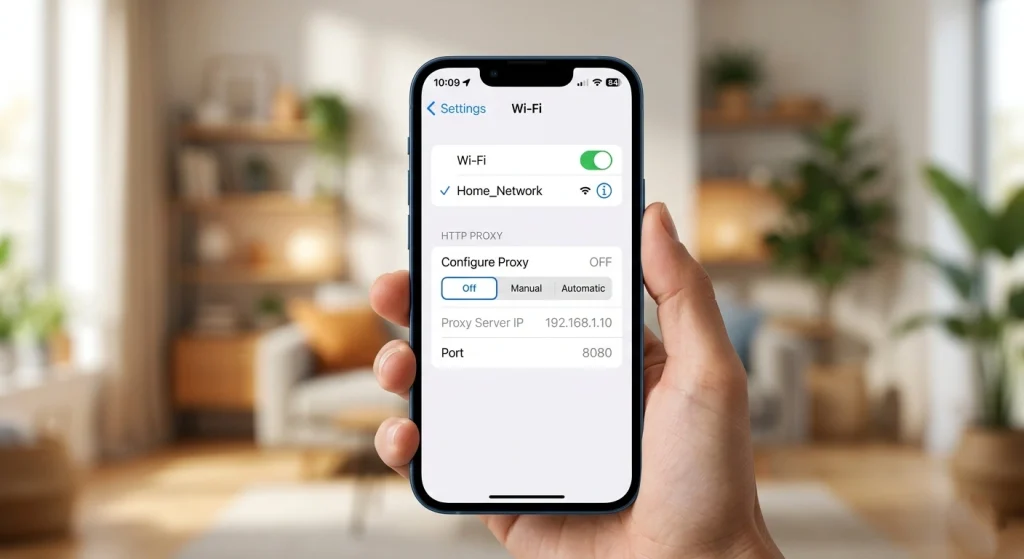
Mobile handset connection models frequently require manual proxy overrides, especially after connecting to restricted airport networks or public hotspots that enforce traffic capturing proxy filters.
How Do I Turn Off Proxy on My iPhone and iPad?
To perform a clean how to turn off proxy settings on iphone operation, you must target the specific active Service Set Identifier (SSID) profile assigned to your current wireless radio connection:
- Unlock your iOS system and open the native Settings app console.
- Tap into the Wi-Fi structural control menu.
- Locate the active, check-marked network string you are currently utilizing and select the circular “i” info element positioned on the far right.
- Scroll to the absolute bottom of the operational interface screen until you encounter the configuration header titled HTTP Proxy, then select Configure Proxy.
- Change the checked status marker from Manual or Automatic over to Off. Save settings to clear all intermediate routing scripts immediately.
When running specialized applications like modern enterprise communication streams or high-performance toolsets, you may also need to check for active Virtual Private Network (VPN) profiles. If you need to figure out how to turn off proxy or vpn profiles completely, go to Settings > General > VPN & Device Management and remove any unauthorized corporate configurations or testing profiles that are enforcing traffic interception.
How to Turn Off Proxy on Android Phone Implementations
The layout of the Android operating system varies slightly based on manufacturer skins (e.g., Samsung One UI, Google Pixel, Xiaomi MIUI). However, the underlying network layer layout remains standardized:
- Open the central system Settings deck.
- Select Network & Internet or alternative variations like Connections, then tap into Wi-Fi options.
- Long-press or select the gear icon directly linked to your current wireless access point profile name.
- Tap on the advanced dropdown drawer option (on specific models, click the “Edit Network” or “Modify Network” pencil element).
- Find the Proxy field selection. Change this parameter setting from Manual or Proxy Auto-Config over to None. Click the Save button to commit changes.
This process successfully completes the how to turn off proxy server on android requirements, instantly restoring standard cellular and Wi-Fi interface direct data flows.
How to Turn Off Proxy in Web Browsers
Modern web browsers usually inherit proxy configurations directly from the host operating system. However, specific configurations can sometimes lead to localized browser locks. Let’s look at how to break these locks across different browsers.
How Do I Bypass System Proxy Settings in Chrome?
Google Chrome features an internal system link that bridges browser operations with your computer’s native network architecture. To verify or modify these options:
Open your Chrome browser instance, move your cursor to the top-right menu icon (the three vertical dots), and open Settings. In the navigation search bar located at the top of the configurations page, enter the keyword string proxy. Chrome will display a setting labeled Open your computer’s proxy settings. Clicking this will launch your operating system’s native proxy configuration control panel, allowing you to follow the Windows or macOS steps outlined above. If you’re using a Chromebook, navigating to Settings > Network > Wi-Fi and expanding the advanced network array allows you to switch the proxy configuration dropdown from manual back to a clean Direct Internet connection setting.
Deactivating Proxies in Alternative Browsers (Firefox & Edge)
Unlike Chrome, Mozilla Firefox maintains an independent, application-level proxy network stack. This design choice makes it a powerful environment for running distinct isolation tasks alongside your system’s primary connections. To clear these settings in Firefox, open the application menu, select Settings, and scroll down to the bottom of the General tab to find Network Settings. Click Settings… to open the network configuration panel. To bypass all external intermediaries, check the box for No proxy. This tells Firefox to entirely ignore system-level proxy configurations, providing a clean, direct routing path for your browser traffic.
| Platform / Browser Environment | Primary Settings Navigation Pathway | Target Configuration Option | Fallback Command / Force Mode |
| Windows 10 / 11 Stack | Settings > Network & Internet > Proxy | Use a proxy server -> Toggle Off | netsh winhttp reset proxy via Admin CMD |
| macOS (Apple Systems) | System Settings > Network > Advanced > Proxies | Deselect all listed proxy protocols | Clear network location profile completely |
| Google Chrome Desktop | Settings > System > Open Proxy Settings | Inherits Host OS parameters automatically | Launch via –no-proxy-server CLI flag |
| Mozilla Firefox | Preferences > General > Network Settings | Select the “No proxy” radio button option | Reset network.proxy.type inside about:config |
| Apple iOS Platform | Settings > Wi-Fi > Network Info (i) Icon | Configure Proxy -> Select Off | Reset Network Settings under General Reset panel |
Real-World Troubleshooting: When Proxy Settings Refuse to Turn Off
A common issue network engineers encounter is proxy configurations that immediately toggle back on after being disabled. This issue is rarely a random bug; it typically points to underlying system or security events, such as:
- Malicious Browser Extensions: Rogue browser add-ons or unauthorized ad-blockers can inject localized routing configurations. If you notice your network proxy settings resetting every time you launch your browser, review your active extensions, clear your browser cache, or consider performing a full browser settings reset.
- Group Policy Object (GPO) Enforcement: On corporate laptops or managed devices, IT departments use Group Policies to enforce web-filtering proxies. If these corporate compliance rules are active on your device, manual setting changes will be automatically reverted by the system.
- Persistent Local Daemon Tasks: Certain third-party proxy clients or software packages leave active background services running even after you close the app. These services can continuously inject local address loops (like 127.0.0.1:8080) back into your network stack.
Our technical team recently assisted a digital marketing firm facing a similar challenge. The firm’s automated data collection scripts began throwing constant connection errors across their office network. Troubleshooting revealed that an outdated, third-party proxy tool had crashed, leaving stale manual configurations locked into their Windows registry. Once we cleared those residual entries and implemented a clean netsh winhttp reset proxy command, normal connectivity was immediately restored.
For teams managing high-volume data operations or distributed research, relying on brittle, system-wide proxy software often leads to these kinds of routing conflicts. A more resilient approach is to handle proxy configurations at the application level using robust, enterprise-grade infrastructure.
When Should You Keep Proxies On? NiuProxy Insights
While disabling a broken or misconfigured local proxy is necessary to restore basic internet access, completely removing proxy infrastructure from your business or data workflows isn’t always the right move. In professional web operations, proxies are essential tools for maintaining security, scalability, and access control. The key is moving away from unreliable public options and adopting stable, enterprise-grade proxy architectures tailored to your specific use cases.
For example, if your work involves large-scale market research, e-commerce monitoring, or search engine data analysis, running tasks on a direct local connection will quickly lead to IP rate limits and access restrictions. This is where advanced proxy configurations become critical.
Enterprise Proxy Architectures: Choosing the Right Solution
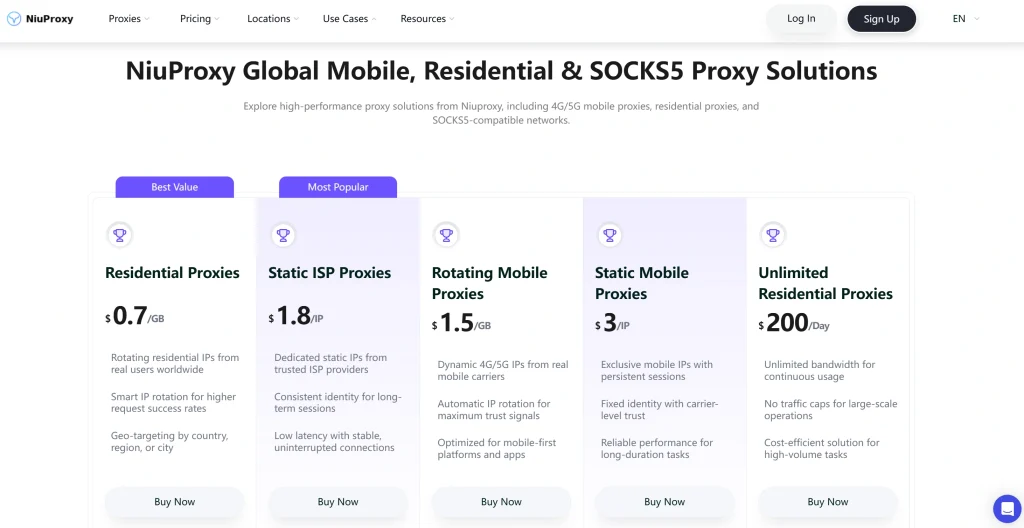
Modern network operations require different proxy types based on performance and target complexity. The primary options available for professional infrastructures include:
- Rotating Residential Proxies: These proxies route requests through genuine, ISP-assigned residential endpoints. Because they use authentic home connections, they offer excellent anonymity and are highly effective for accessing complex web platforms without triggering security blocks.
- Static ISP Proxies: Combining the best of both worlds, static ISP proxies deliver the lightning-fast performance of a data center environment alongside the high reputation of a legitimate residential IP address. They are ideal for managing professional social media accounts or corporate profiles that require a consistent, unchanging location.
- Rotating Mobile Proxies: These proxies assign connections to authentic cellular network nodes (3G/4G/5G). Because mobile networks rotate IPs naturally among millions of actual devices, these endpoints carry exceptionally high trust scores, making them invaluable for mobile application testing and ad verification.
- Static Mobile Proxies: Providing a stable, persistent connection over a real cellular network interface, these proxies are perfect for continuous platform testing that requires long-term session consistency across mobile infrastructures.
- Rotating Datacenter Proxies: The go-to choice for high-speed, cost-effective data collection. For large-scale web crawling projects on platforms with standard security requirements, these proxies provide massive bandwidth and rapid request cycles.
To help choose the best infrastructure for your specific operational goals, you can explore our detailed breakdown on datacenter proxy vs residential proxy solutions to find the optimal balance of speed, cost, and target compatibility.
Frequently Asked Questions (FAQ)
Why does my proxy server setting keep turning back on automatically in Windows 10?
This behavior is usually caused by a third-party software client, a malicious browser extension, or an active enterprise Group Policy (GPO) script resetting your network layer. To resolve this, run an elevated command prompt and execute netsh winhttp reset proxy, then review your browser extensions and remove any recently installed or unrecognized network applications.
Will turning off my proxy settings impact my VPN connection?
No. System-level proxy settings and standard Virtual Private Network (VPN) tunnels operate on different layers of your network stack. A VPN encapsulates your entire device’s network traffic through an encrypted virtual adapter, whereas proxy settings simply route traffic from specific protocols (like HTTP or HTTPS) to a designated gateway address.
How do I completely bypass or skip proxy configurations for specific local websites?
Both Windows and macOS include an exception field within their advanced proxy configuration menus. You can enter specific local domain strings or IP ranges (such as localhost or 192.168.*) into this field. This tells your operating system to bypass the proxy server and establish a direct connection whenever you access those specific internal addresses.
What is the fastest way to verify if my proxy is completely deactivated?
After disabling your proxy settings, open a browser window and visit a reputable IP identification tool. If the tool displays your actual ISP provider name and your local geolocation rather than an unexpected data center node, your proxy configurations have been successfully removed.
Is a proxy server the same thing as an unblocker or a streaming proxy?
Yes, many commercial unblockers and media-streaming tools use basic proxy configurations to mask your geographic location. However, simple public proxies are easily detected and blocked by major streaming platforms. Professional data operations use advanced solutions, such as proxy with socks5 protocols, to ensure clean, high-performance data delivery across more complex network environments.
Conclusion
Successfully managing your network routing relies heavily on knowing exactly when and how to turn off proxy server configurations. For everyday internet users, a misconfigured local proxy is a frequent bottleneck that triggers persistent connection dropouts and frustrating browser timeouts. By systematically using the steps outlined in this guide—whether that means flipping a toggle in your Windows settings, clearing out the protocol stack on macOS, or executing a clean network drop via the command line—you can instantly bypass stale paths and restore a direct, stable connection to your primary gateway.
However, for digital marketers, SEO specialists, and data analysts, the goal isn’t to eliminate proxies entirely, but rather to shift away from fragile, system-wide local tools. While clearing out local network anomalies keeps your standard workstation running smoothly, high-volume operational tasks require robust, dedicated infrastructure. Utilizing premium network architectures—such as NiuProxy’s highly resilient rotating residential proxies, static ISP proxies, or high-trust mobile configurations—allows your automated programs to handle large-scale data aggregation seamlessly. This approach ensures you maintain pristine data accuracy and complete compliance without risking local system lockouts or unexpected connection failures.